GoFabric Infrastructure Guide
Access GoInfra by clicking on the App Menu in the navigation bar and selecting the application.
Create an infrastructure
You will need to choose between two provider options:
- External: This option allows you to create your infrastructure on your own servers.
- AWS: This option allows you to create your infrastructure on your Amazon Web Services, by informing your Access Key and Secret Key.
- GCP: This option allows you to create your infrastructure on your Google Cloud Platform, by informing Service access JSON file.
- GoLedger: This option will use GoLedger as a provider, so you don't need to manage any infrastructure. (Coming soon)
- Kubernetes On-Premise: Set up infrastructure using a self-managed Kubernetes cluster by providing a kubeconfig file and cluster details.
- Kubernetes EKS: Set up infrastructure on AWS EKS by providing a kubeconfig file and EKS cluster configuration.
The Starter Organization tier allows External and GoLedger providers. The AWS provider is available on higher plans.
For Kubernetes infrastructure setup, see the dedicated Kubernetes Infrastructure Setup guide.
Creating an External infra provider
If you choose the External provider, you will need to inform the following information:
- Name: The name of your infrastructure
Then just click on the "Create Infra" button to create your infrastructure.
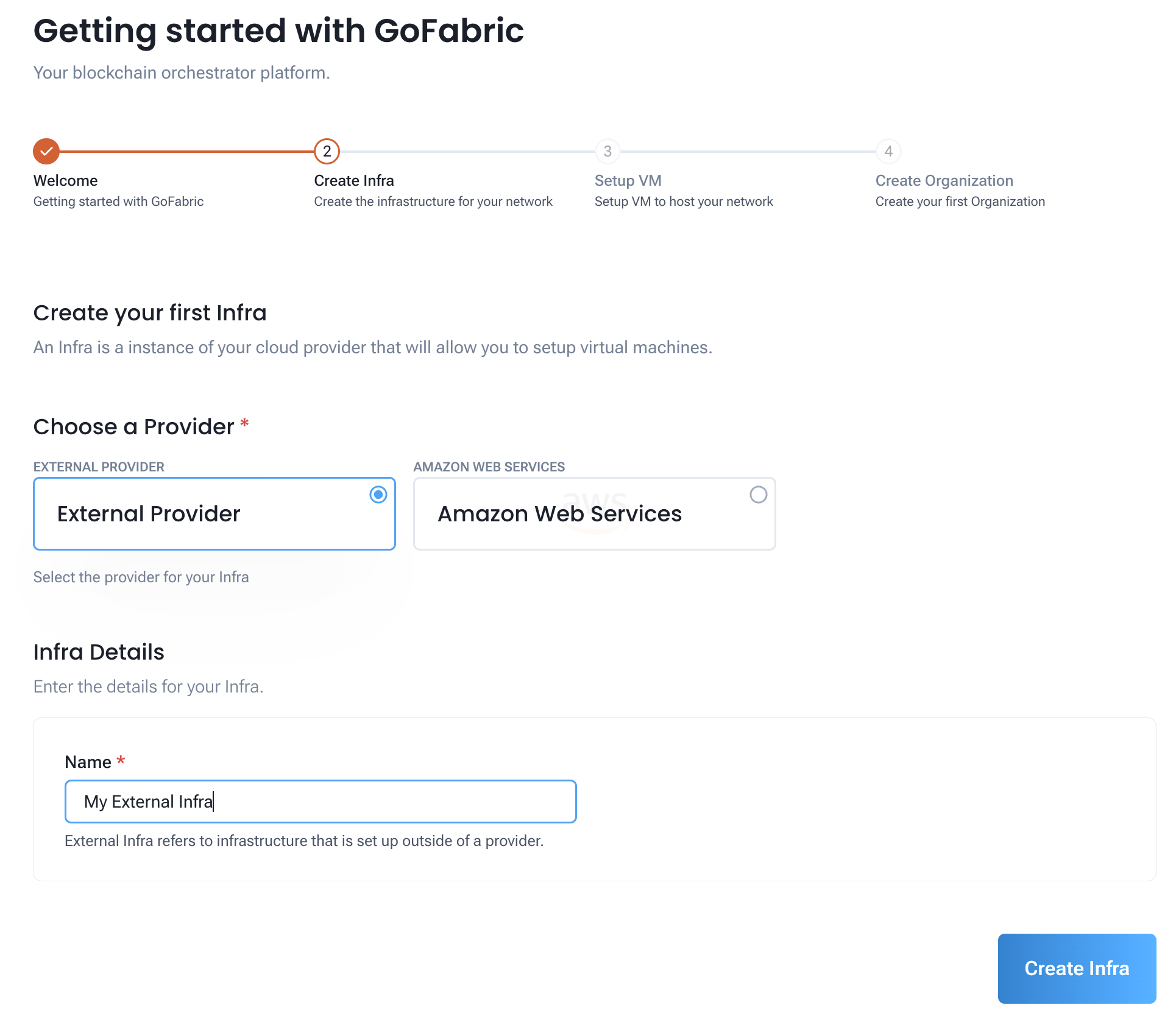
Now you can proceed to the next step, which is setting up your virtual machines (VMs).
To set up your VMs, you will need to inform the following information:
- SSH User: The user that will be used to connect to the VMs
- SSH Key: The SSH key that will be used to connect to the VMs
- IP Addresses: The IP addresses of the VMs that will be setup
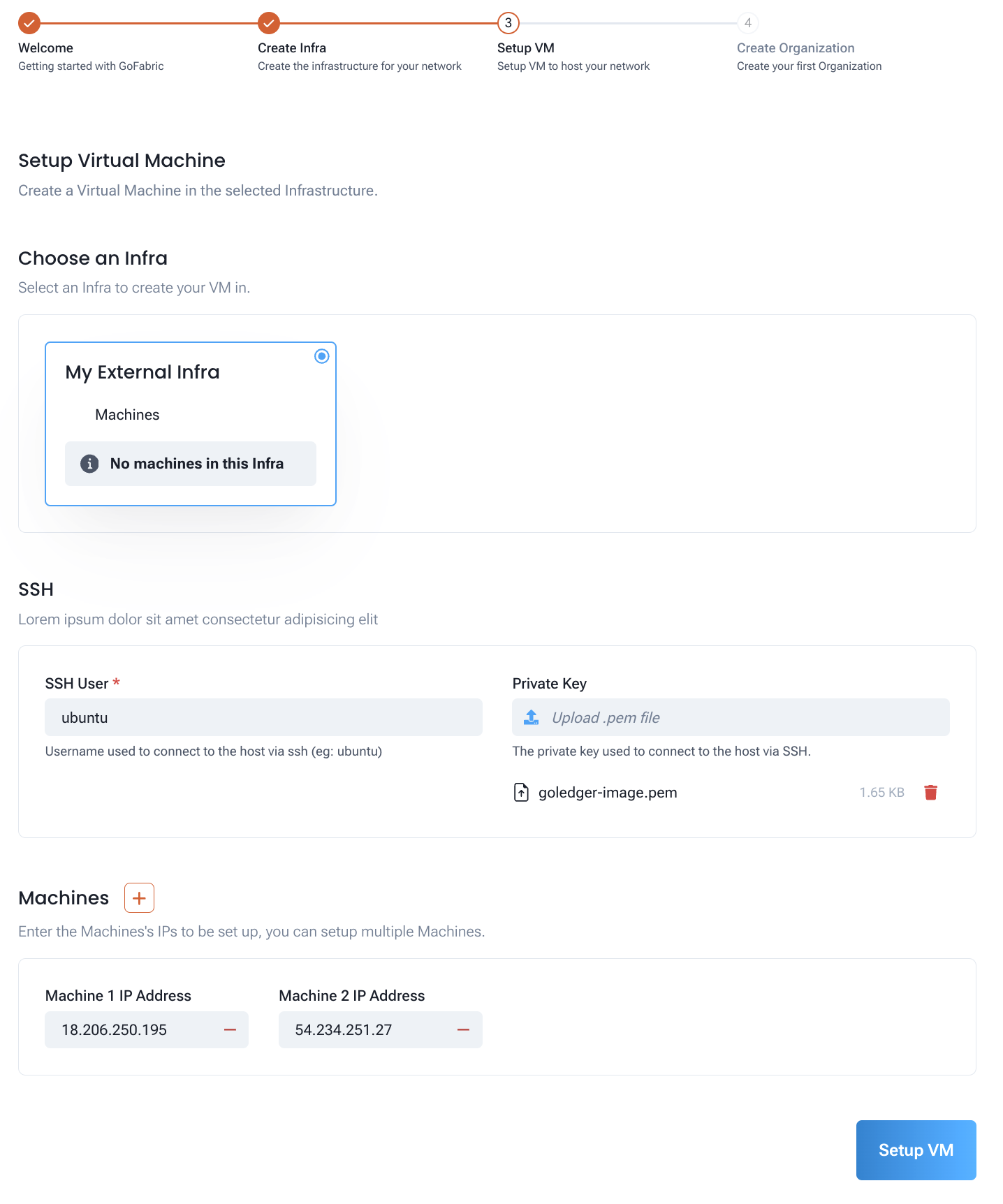
During setup, you can see the progress of the VM configuration.
Creating an AWS infra provider
If you choose the AWS provider, you will need to inform the following information:
- Name: The name of your infrastructure
- Region: The AWS region where your infrastructure will be created
- Access Key: Your AWS Access Key
- Secret Key: Your AWS Secret Key
- Security Group Name: The name of the security group that will be created. This should not exist in your AWS account. GoInfra will the firewall rules for the blockchain resources.
- SSH Key Name: The name of the SSH key that will be created. This should not exist in your AWS account. GoInfra will create the SSH key to be used to connect to the VMs.
Then just click on the "Create Infra" button to create your infrastructure.
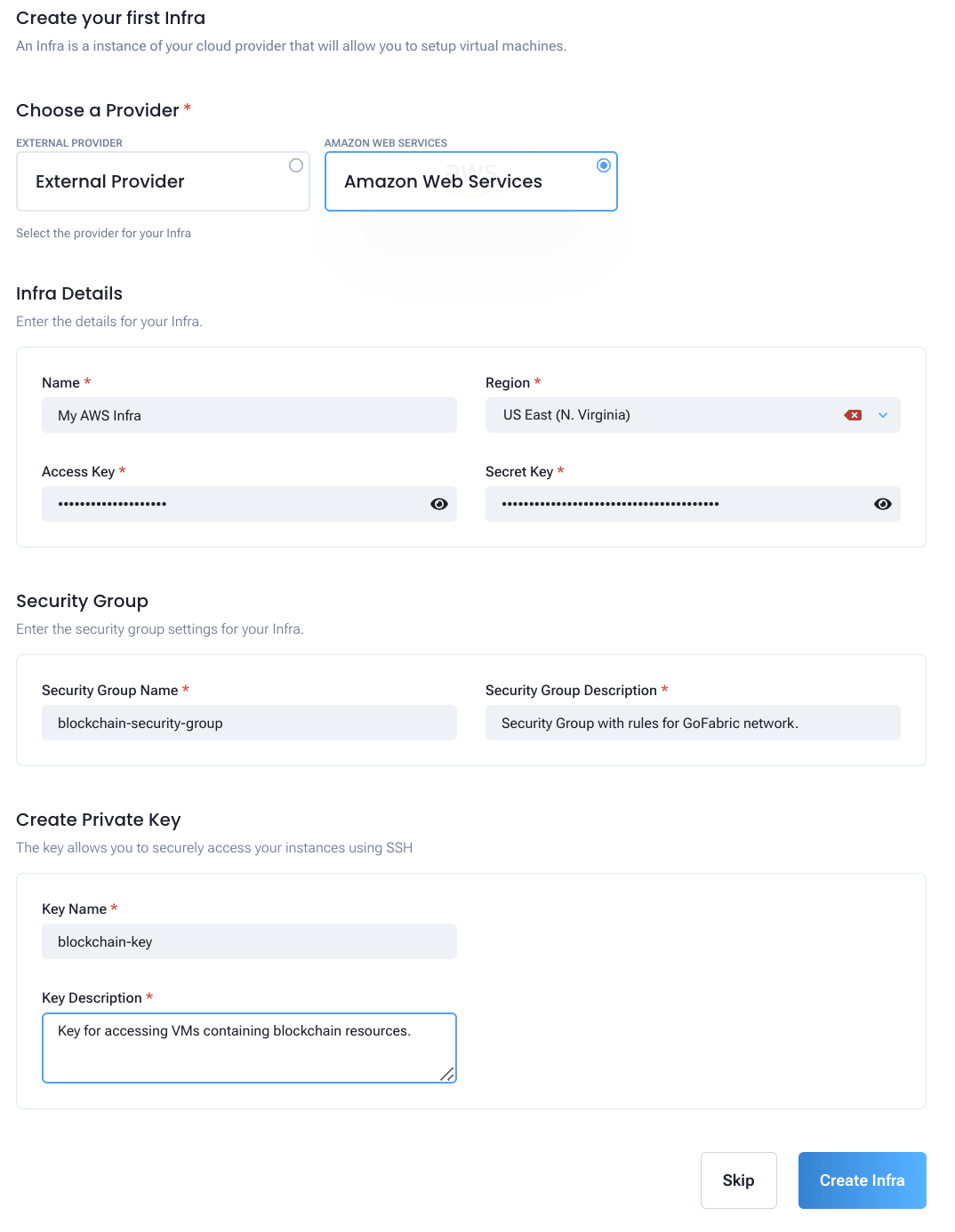
Now you can proceed to the next step, which is setting up your virtual machines (VMs).
To set up your VMs, you will need to inform the following information:
- Instance Type: The type of the VM that will be created
- SSH Key: The SSH key that will be used to connect to the VMs. This was created in the previous step.
- Instance name: The name of the VM that will be created
- Instance image: The image of the VM that will be created. Currently, only Ubuntu 20 is supported.
- Instance count: The number of VMs that will be created
- Storage size: The size of the storage that will be created
- Security Group Name: The name of the security group that will be used. This was created in the previous step.
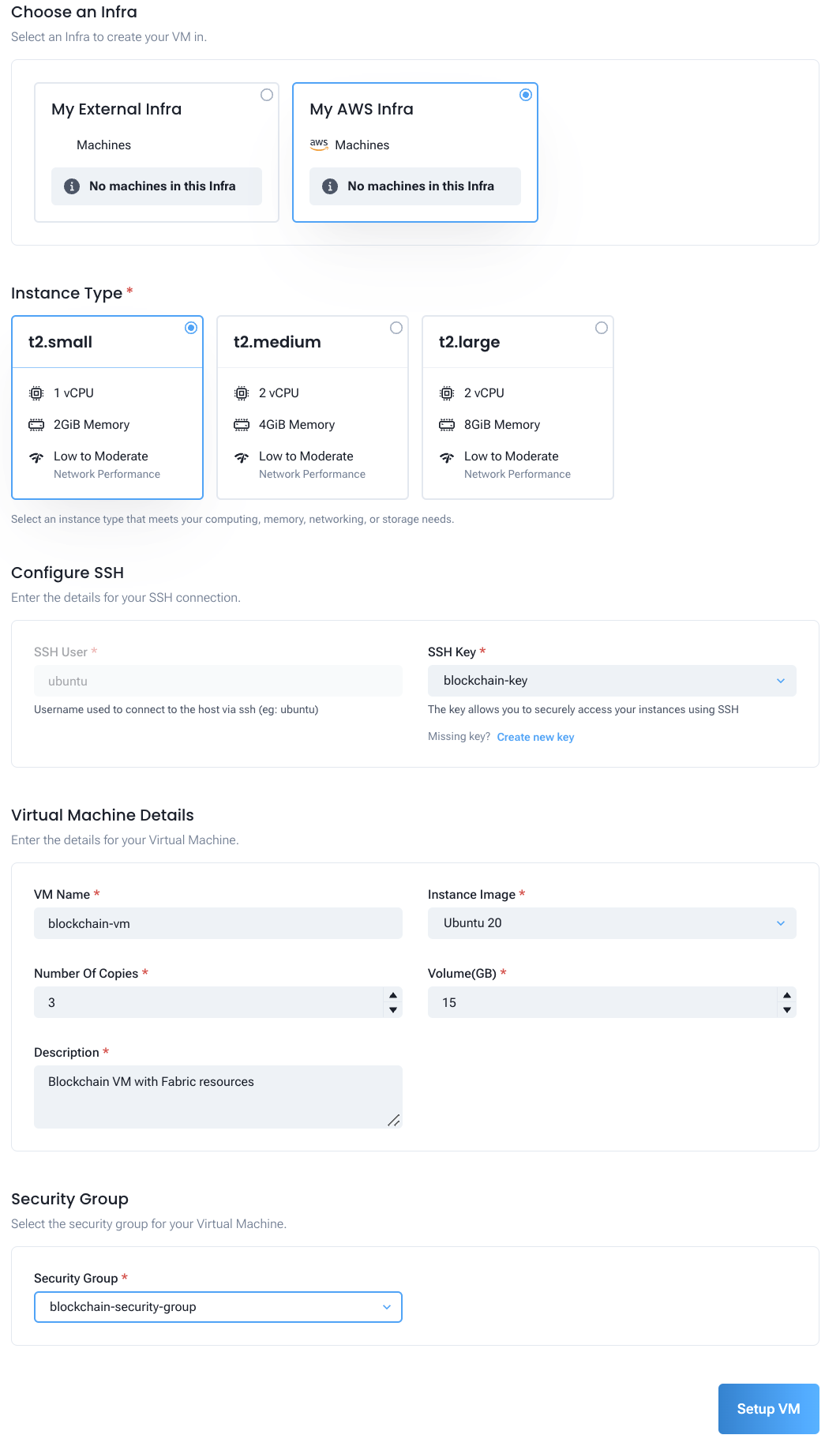
During setup, you can see the progress of the VM configuration.
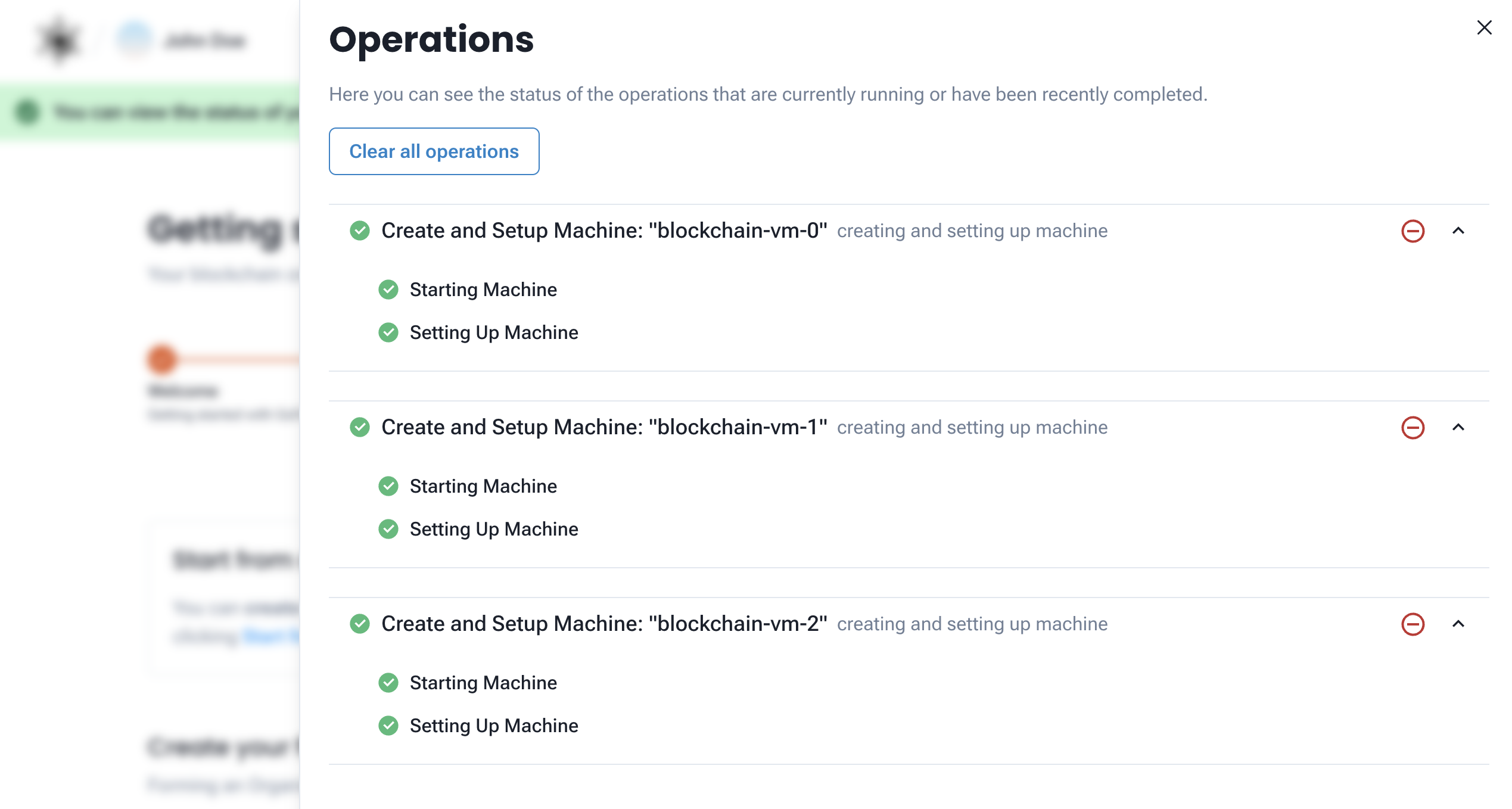
You can also see the details of the VMs that were created on your AWS account.
After setting up your VMs, you can proceed to the next step, which is setting up your first organization.
Creating a GCP infra provider
If you choose the GCP provider, you will need to fill in the following information:
Infra Details
- Name (required): The name of your infrastructure.
- Zone (required): The GCP zone where your infrastructure will be created. Select from the available zones in the dropdown.
- Json File GCP (required): Upload the GCP service account JSON key file. This file provides the credentials GoInfra needs to provision resources on your Google Cloud project.
VPC Network
- VPC Network Name (required): The name of the VPC network that will be created for your infrastructure.
- VPC Network Description (required): A description for the VPC network.
Create Private Key
- Key Name (required): The name of the SSH private key that will be created. This key is used to securely access your instances.
- Key Description (required): A description for the private key.
Then click on the Create Infra button to create your infrastructure.
After creating the infrastructure, the VM setup process is analogous to the AWS provider.
Creating an Azure infra provider
If you choose the Azure provider, you will need to fill in the following information:
Infra Details
- Name (required): The name of your infrastructure.
- Resource Group (required): The name of an existing Azure Resource Group where the infrastructure will be created. Make sure it exists in the selected location.
- Location (required): The Azure region where your infrastructure will be deployed. The selected location must match the region of your Resource Group.
- Client Secret (required): The client secret of the Azure Active Directory application used for authentication.
- Client ID (required): The application (client) ID of the Azure Active Directory app registration.
- Tenant ID (required): The directory (tenant) ID of your Azure Active Directory.
- Subscription ID (required): The ID of the Azure subscription where resources will be provisioned.
Virtual Network
- Virtual Network Name (required): The name of the Virtual Network (VNet) that will be created for your infrastructure.
- Virtual Network Description (required): A description for the Virtual Network.
Create Private Key
- Key Name (required): The name of the SSH private key that will be created. This key is used to securely access your instances.
- Key Description (required): A description for the private key.
Then click on the Create Infra button to create your infrastructure.
After creating the infrastructure, the VM setup process is analogous to the AWS provider.
Creating a GoLedger infra provider
Coming soon: GoLedger-managed infrastructure is not yet available. Check back later for updates.
Next Steps
With your infrastructure and VMs set up, you are ready to create your organization:
- GoFabric: Continue to the GoFabric Setup Guide to create your organization.
- GoBesu: Continue to the GoBesu Setup Guide to create your organization.