VM Setup
After creating an infrastructure, the next step for VM-based providers (External, AWS, GCP, and Azure) is to create the virtual machines that will run your blockchain components. This is done through a 2-step wizard:
- Select the provider and instance type
- Setup the instance
- Step 1: Select Provider
- Step 2: External Provider
- Step 2: Cloud Providers (AWS, GCP, Azure)
- Next Steps
ℹ️ Note: AWS EKS does not have a VM setup step — blockchain components are deployed directly as Kubernetes pods on your existing cluster.
Step 1: Select Provider
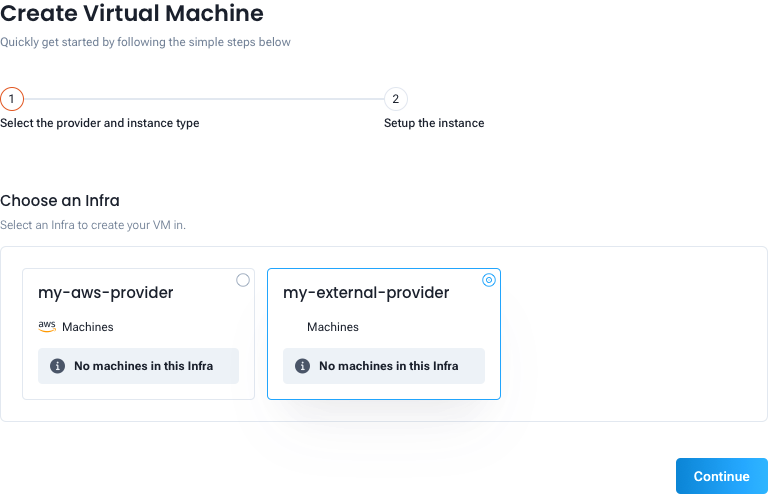
Navigate to Create VM in the GoInfra sidebar. You will be prompted to select which infra to use and confirm the provider type before advancing to Step 2.
Step 2: External Provider
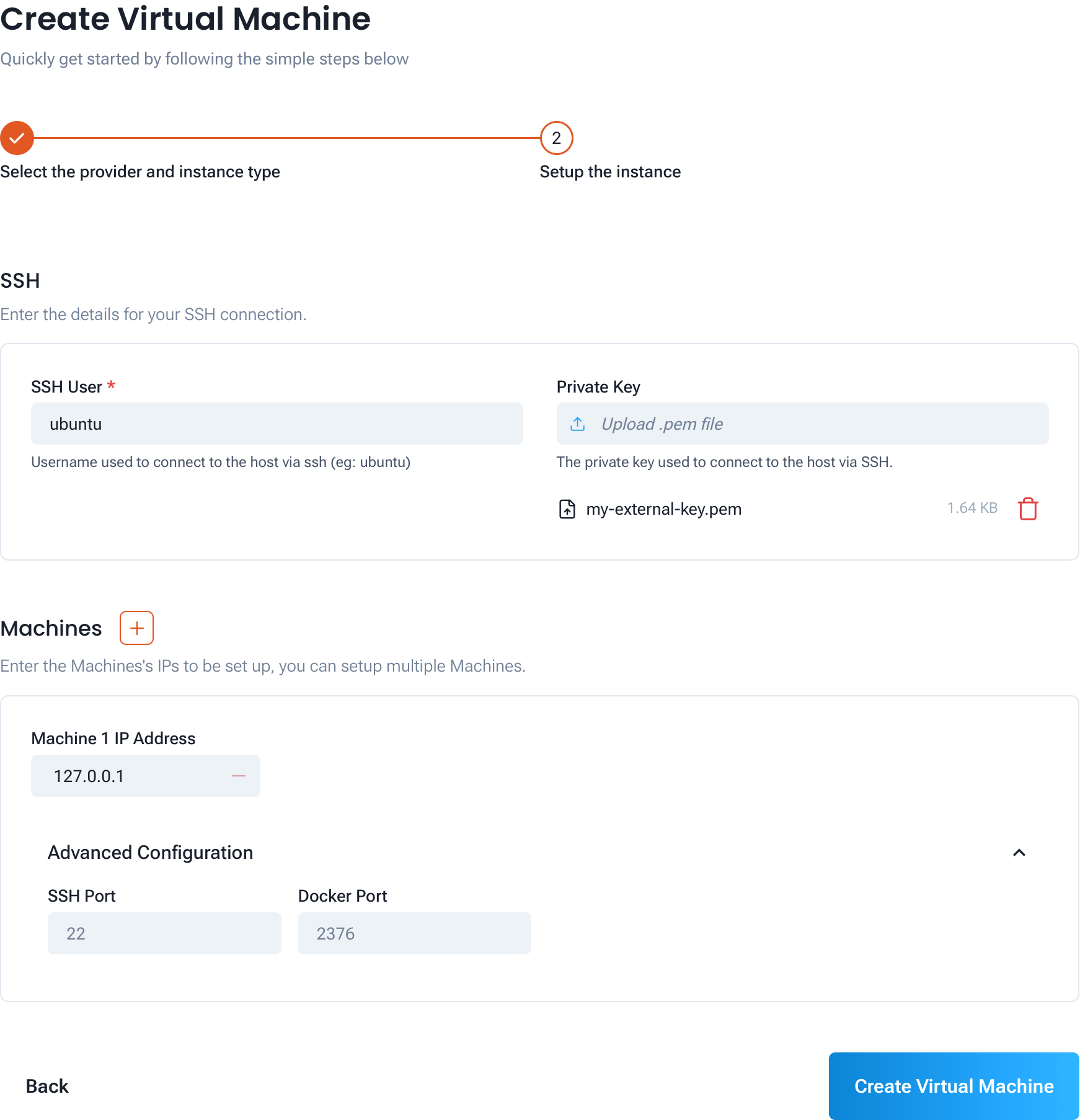
For External infrastructures, you will register your own pre-existing machines by providing SSH credentials and their IP addresses.
SSH
- SSH User (required): The username used to connect to your machines via SSH (e.g.
ubuntu). - Private Key (required): Upload the
.pemprivate key file used for SSH authentication.
Machines
Add each machine you want to register using the + button. You can add multiple machines in a single step.
- Machine N IP Address (required): The public IP address of the machine.
Advanced Configuration (optional, per machine)
Expand this section for each machine to override the default network ports:
- SSH Port (default:
22): Port used for SSH connections. - Docker Port (default:
2376): Port used for Docker API communication.
Then click Create Virtual Machine.
Step 2: Cloud Providers (AWS, GCP, Azure)
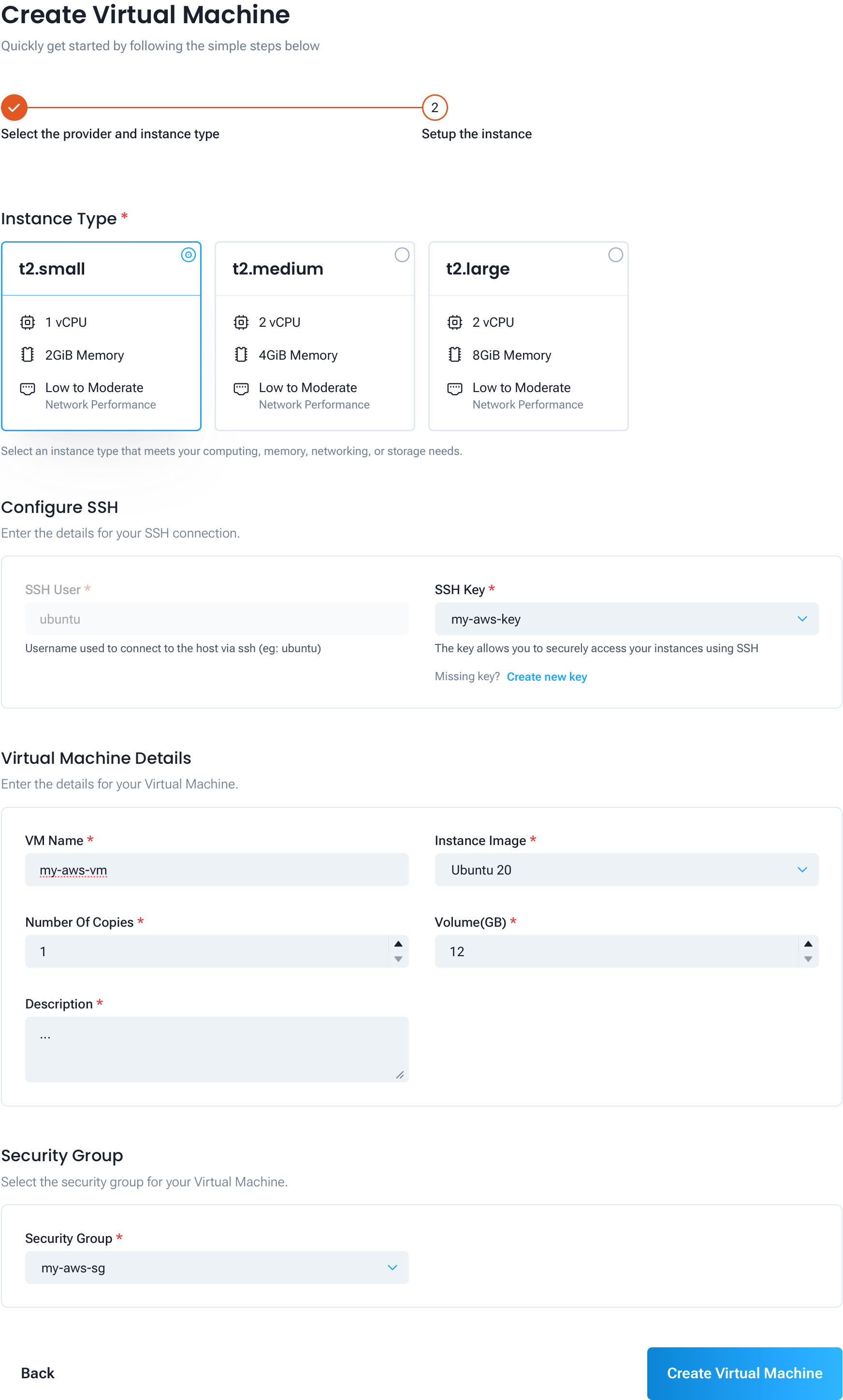
For AWS, GCP, and Azure infrastructures, GoInfra will provision the virtual machines directly in your cloud account. The setup form is identical across all three providers.
Instance Type (required)
Select the compute size for your VM. The options available depend on the provider you selected when creating your infrastructure, and the region your infra is set to.
Configure SSH
- SSH User (required): The username used to connect to the VM via SSH (e.g.
ubuntu). - SSH Key (required): Select a key from the dropdown — this list contains the SSH keys created when you set up the infra.
Virtual Machine Details
- VM Name (required): A name for the virtual machine.
- Instance Image (required): The OS image for the VM. Currently, only Ubuntu 20 is supported.
- Number of Copies (required): How many identical VMs to create in this step. All copies share the same configuration.
- Volume (GB) (required): The storage volume size in gigabytes for each VM.
- Description (required): A short description for the VM.
Security Group
- Security Group (required): Select a security group from the dropdown — this list contains the security groups created when you set up the infra.
Then click Create Virtual Machine.
Next Steps
With your VMs set up, you are ready to create your organization and start building your network: