Kubernetes Infrastructure Setup
This guide walks you through creating a Kubernetes-based infrastructure in GoChain. This replaces the VM-based infrastructure setup — when using Kubernetes, you do not need to provision or configure virtual machines.
Overview
When using Kubernetes, the infrastructure represents your K8s cluster rather than a set of virtual machines. GoChain connects to the cluster using a kubeconfig file and deploys Fabric components as pods within the cluster.
The key difference from VM-based setup:
- No VM provisioning step — the cluster handles all compute resources
- Components will have their host resolved automatically from the cluster configuration
Supported Providers
| Provider | Description |
|---|---|
| Kubernetes On-Premise | Any self-managed Kubernetes cluster — on-premises, GKE, AKS, or other standard K8s distributions |
| Kubernetes EKS | AWS Elastic Kubernetes Service managed clusters |
Creating a Kubernetes Infrastructure
Step 1: Navigate to GoInfra
Access GoInfra by clicking on the App Menu in the navigation bar and selecting the application.
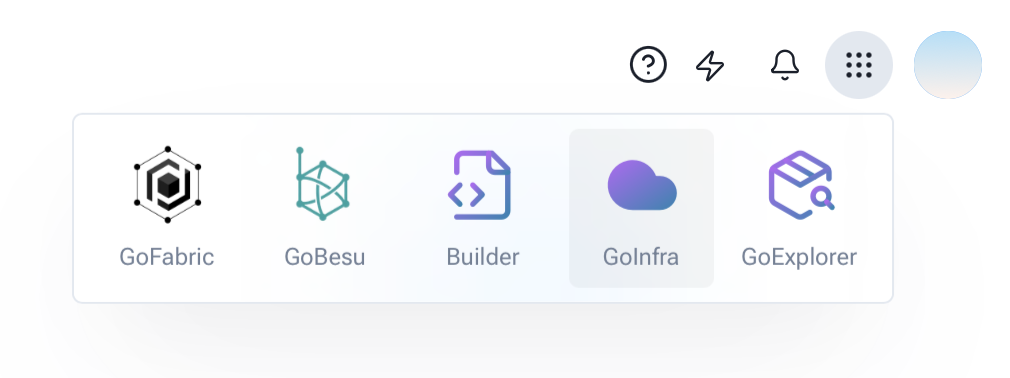 Figure 1: Accessing GoInfra from the App Menu
Step 2: Select a Kubernetes Provider
In the infrastructure creation screen, select one of the Kubernetes providers:
- Kubernetes On-Premise — for self-managed clusters (Coming soon)
- Kubernetes EKS — for AWS EKS clusters
Step 3: Provide Cluster Configuration
Fill in the general details for your infrastructure:
- Infrastructure Name: Enter a name for your infrastructure (e.g., "K8s Production Cluster").
- Target DNS Name (required): The base DNS domain used to expose Fabric components deployed in the cluster. GoFabric generates subdomains under this domain for each component (e.g.,
peer0.org1.<target-dns-name>). You must configure your DNS provider to point a wildcard record (*.<target-dns-name>) to your cluster's load balancer or ingress IP address.
Then, depending on the provider you selected, fill in the specific cluster details:
Kubernetes EKS
- Cluster Name (required): The name of your EKS cluster as defined in AWS.
- Cluster Endpoint (required): The Kubernetes API server endpoint URL (e.g.,
https://xxxxx.gr7.us-east-1.eks.amazonaws.com). - CA Certificate (required): The CA certificate for the cluster API server (available in the EKS cluster details on AWS Console).
- AWS Access Key (required): Your AWS Access Key with permissions to manage the cluster.
- AWS Secret Key (required): Your AWS Secret Key. The credentials must have an IAM role that allows authentication to the cluster and resource management.
- Role ARN (required): The Amazon Resource Name (ARN) of the IAM role that GoChain will assume to interact with the EKS cluster. This role must have the necessary permissions to manage Kubernetes resources (namespaces, deployments, services, and persistent volume claims) within the cluster. The role must also be mapped in the cluster's
aws-authConfigMap to allow access.
 Figure 3: Creating a Kubernetes infrastructure
Step 4: Create the Infrastructure
Click on the Create Infra button to create your infrastructure.
ℹ️ Note: Unlike VM-based deployments, there is no "Set Up Virtual Machines" step after creating a Kubernetes infrastructure. The cluster handles all compute resources automatically.
What Happens Next
After creating the infrastructure:
- You have an Infra that references your Kubernetes cluster
- When creating organizations, peers, orderers, and other components, you can select this Infra instead of selecting a VM host
- The platform resolves the component host automatically from the cluster configuration
- All components are deployed as pods within the Kubernetes cluster
Next Steps
- Deploy components and chaincodes on Kubernetes — Learn how to create organizations, peers, orderers, and deploy chaincodes on your K8s cluster
- For general GoFabric concepts, refer to the standard GoFabric Setup Guide